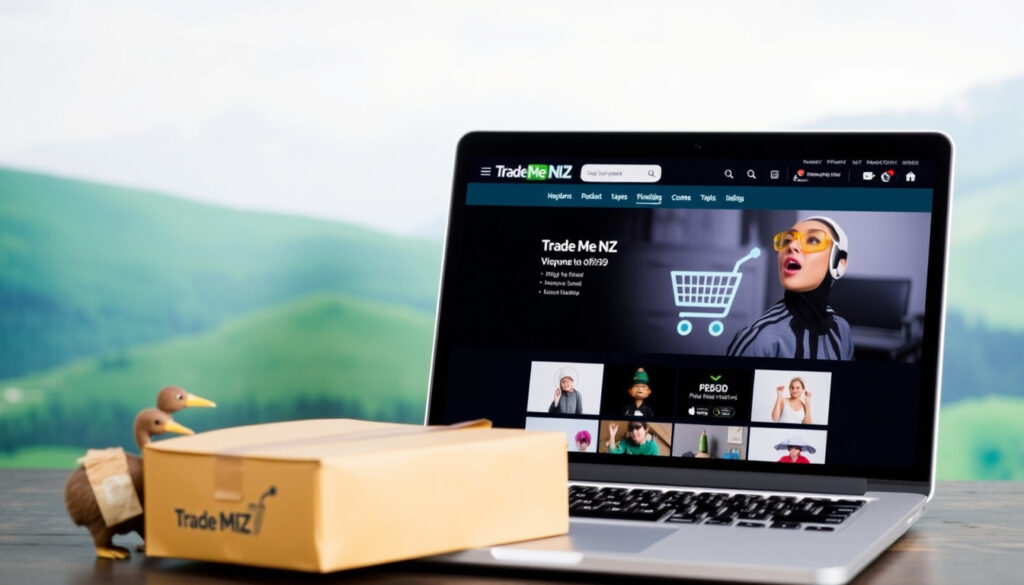
How to Browse Trade Me NZ: Complete Guide for Buyers and Sellers
New Zealand’s go-to marketplace, Trade Me, lets you browse millions of listings without an account — but selling and managing items still requires a login. This guide walks through the quickest ways to search, filter by location, and manage your own listings, with instructions straight from Trade Me’s own Help Centre.
Trade Me monthly visits: over 15 million ·
Items listed on Trade Me: over 4 million at any time ·
Trade Me browse categories: over 50 ·
Year Trade Me founded: 1999
Quick snapshot
- Visit the Trade Me homepage
- Use the search bar or browse Trade Me categories
- No login needed for browsing — Trade Me Help Centre
- Log into your Trade Me account
- Go to My Trade Me → “Items for Sale”
- Manage listings from Trade Me’s Marketplace listings help
- Use Trade Me’s location filters
- Select a region from Trade Me Help Centre
- Sort by distance with Trade Me’s advanced search
- Use quotation marks for exact phrases — Trade Me Advanced Search
- Use asterisk for partial words — Trade Me Marketplace article
- Use
ORorNOTto refine — Trade Me Advanced Search - Open Trade Me Advanced Search
Four categories surface the main ways people interact with Trade Me. The first two are for buyers, the third for sellers, and the fourth for power users who want more precision.
| Label | Value |
|---|---|
| Trade Me browse URL | www.trademe.co.nz/a/browse |
| Categories available | Property, Motors, Marketplace, Jobs, Services |
| Free browsing | Yes, no account required to view listings |
| Login required to sell | Yes |
How do I browse items on Trade Me NZ?
Browsing on Trade Me doesn’t require an account — you can start looking the moment you land on the homepage. The Trade Me Help Centre (official support site) explains that a search begins from the homepage search bar: enter a phrase and select “Search”.
- Go to the Trade Me homepage and pick a category or enter a search term.
- Choose a category to narrow the listing pool before you search.
- Use Refine to filter by location, price, shipping, payment method, and Buy Now availability.
- Sort the results by Best match, price, latest listings, closing soon, or another option.
Visit the Trade Me homepage
- Go to www.trademe.co.nz.
- You’ll see the main categories: Property, Motors, Marketplace, Jobs, and Services.
- Click any category to see all listings in that section.
Use the search bar
- Type a keyword (e.g., “mountain bike”) and press Enter.
- On the iOS app, select Discover, enter a phrase, then select Search. Same on Android per Trade Me Help Centre.
- For exact phrases, use quotation marks. For partial words, use an asterisk — Trade Me Marketplace article (tips) recommends this.
Filter by category
- After searching, use the Refine button to narrow results.
- You can filter by location, category, price range, shipping, payment method, and whether Buy Now is available — Trade Me Help Centre.
- Trade Me Marketplace article also suggests filtering by condition (used/new) and payment options like Ping or Afterpay.
Sort and refine your results
- Default sort is Best match. You can change to: Lowest/highest price, Latest listings, Closing soon, Title A–Z, Largest discount, and more — Trade Me Help Centre.
- Use the Refine panel to combine multiple filters at once.
Buyers who skip category selection often get drowned in irrelevant results. The Trade Me Marketplace article warns that broad terms surface too many listings, so picking the right category first saves time.
The implication: browsing without filters is like walking into a warehouse with no aisle signs. A few clicks on Refine turn a keyword flood into a manageable list.
What is the Trade Me marketplace?
Trade Me Marketplace is the platform’s main classifieds section, where individuals and businesses list new and used items. The Trade Me Browse page groups it alongside Property, Motors, Jobs, and Services, but Marketplace is the largest by volume.
Types of items in Marketplace
- Electronics, clothing, furniture, toys, collectibles, and more.
- Both auction-style and fixed-price (Buy Now) listings.
- Listings can be viewed by browsing or searching.
The Trade Me Help Centre (Marketplace listings section) provides dedicated guidance for sellers.
How Marketplace differs from other sections
- Property focuses on real estate, Motors on vehicles.
- Marketplace is the catch-all for everything else.
- You can refine Marketplace results by category, price, location, and condition.
Marketplace listings are created by individuals, not a retailer. Check seller ratings and read descriptions carefully — Trade Me does not guarantee condition.
The pattern: Marketplace is the heart of Trade Me. If you’re looking for a secondhand item, this is where you’ll find it. But the variety means you need to use filters aggressively.
How can I view my Trade Me items for sale?
If you’re selling, you need to log in to see your own listings. The My Trade Me section is the dashboard for all your activity.
Log into your Trade Me account
- Go to www.trademe.co.nz/Login.
- Enter your email and password.
- If you’ve forgotten your password, use the reset link.
Go to My Trade Me
- After logging in, click your name or the “My Trade Me” link in the top menu.
- The dashboard shows your recent activity, watchlist, and saved searches.
Check your current listings
- Click Items for Sale to see active and closed listings.
- From here you can edit, relist, or end a listing.
- You can also see how many views each item has received.
The trade-off: managing listings requires an account, but browsing does not. Sellers get full control; buyers get convenience.
How do I log in to my Trade Me account?
Logging in is the gateway to selling, watching, and messaging. The official login page is at www.trademe.co.nz/Login.
Go to the Trade Me login page
- Open trademe.co.nz/Login.
- You can also click “Log in” from the homepage.
Enter your email and password
- Use the email address you registered with.
- Password is case-sensitive.
- Check the “Remember me” box to stay logged in on your device.
Troubleshoot login issues
- If you’ve forgotten your password, click “Forgot your password?” and follow the reset email.
- If you still can’t log in, contact Trade Me Help Centre.
- Make sure your browser cookies are enabled.
Never share your password. Trade Me will never ask for it via email. If you get a suspicious message, report it to the Help Centre.
Why this matters: a lost login means lost access to your listings. Keep your email updated and use a strong password.
How can I find Trade Me items for sale near me?
Location filters are one of the most useful features for buyers who want to inspect items before buying. Trade Me Help Centre confirms you can refine by location.
Use location filters in search
- After searching, click Refine and select a region or city.
- You can also enter a town name in the location field.
Browse by region or city
- From the browse page, choose a category then filter by region.
- Trade Me divides New Zealand into regions like Auckland, Wellington, Canterbury, etc.
Set your default location
- In your account settings, you can set a default location.
- This automatically applies to searches, so you see nearby items first.
- You can also sort results by distance from your location.
The implication: for bulky items like furniture, a near-me filter is a time-saver. It also reduces the risk of scams because you can pick up in person.
Confirmed facts and what’s unclear
Confirmed facts
- Trade Me is New Zealand’s largest online marketplace. (Wikipedia (general reference))
- Browsing is free without login. (Trade Me Help Centre)
- Login is needed to manage your items for sale. (Trade Me My Trade Me)
- Search results can be sorted by 9 different criteria. (Trade Me Help Centre)
- Trade Me was founded in 1999. (Wikipedia (general reference))
What’s unclear
- Exact count of active listings changes constantly — Trade Me’s own figures vary by source.
- Some advanced browse features (like saved searches) may require an account, though most browsing is free.
- Trade Me’s mobile app and website can display different Refine options depending on the version and device.
- The exact set of sort options can vary by category and search type.
- Trade Me’s Help Centre pages are occasionally updated, so wording in this guide may drift from the live interface.
“On the Trade Me website, a search starts from the homepage search bar by entering a phrase and selecting Search.”
— Trade Me Help Centre (official support site)
“Select the correct category first because broad terms can surface irrelevant results.”
— Trade Me Marketplace article (tips)
For New Zealand buyers and sellers, the choice is straightforward: Trade Me remains the dominant online marketplace where you can browse freely, but selling requires a login and a bit of patience with filters. The platform’s 20-year track record and 4-million-item inventory make it the default starting point. Whether you’re hunting for a bargain or decluttering your garage, knowing how to navigate the browse and search tools turns a flood of listings into a targeted list — and that’s the difference between a quick find and a wasted afternoon.
Related reading: Realestate.co.nz: Industry-Owned Property Website for NZ · Houses for Sale New Plymouth: Listings & Platform Guide
help.trademe.co.nz, trademe.co.nz, trademe.co.nz, trademe.co.nz, trademe.co.nz, play.google.com, support.jenza.com, help.trademe.co.nz, youtube.com
For those looking to narrow their browsing to a specific category, our guide to selling car parts on Trade Me offers practical tips for finding the right components.
Frequently asked questions
Do I need an account to browse Trade Me?
No. You can browse all listings without logging in. An account is only required to buy, sell, or message sellers.
Can I browse Trade Me on my phone?
Yes. Trade Me has iOS and Android apps. The app uses the same search and filter functions as the website.
How do I search for a specific item on Trade Me?
Use the search bar on the homepage or app. For exact phrases, use quotation marks. For partial words, use an asterisk.
Is Trade Me free to use for buyers?
Yes, browsing and buying are free. You only pay for the item and shipping. Some payment methods like Ping may have fees.
How do I contact a seller on Trade Me?
Log in, go to the listing, and click “Ask a question”. You can also use the “Contact seller” button after winning an auction.
What payment methods does Trade Me accept?
Common methods include Ping, Afterpay, credit card, bank deposit, and cash on pickup. The seller sets the options.
Can I browse Trade Me items sold by individuals?
Yes. The majority of Marketplace listings are from individuals. You can filter by seller type (private vs business) in the Refine panel.
How do I save a search on Trade Me?
After performing a search, click “Save search” (requires login). You’ll receive email alerts for new listings.
More related posts
 Year of the Horse 2026: Is It Lucky? Fire Horse Meaning & Predictions
 How to Sauté Spinach: Best Method for Perfect Results
 North Shore Police Station: Contact, Phone Number, and Location
 Apple Watch Series 10 NZ: Price, Availability & Worth Buying
 How to Draw Stitch: Easy Step-by-Step
 Song Joong-ki Biography: Age, Wife, Net Worth, and Facts
 North Otago Motor Group Oamaru Guide – Reviews, Staff, Used Cars
 Anti Glare Driving Glasses: Effectiveness, Best Picks & Tips